

If you can't connect to a Windows virtual machine (VM), you can reset the local administrator password . You can use either the Azure portal or the VM Access extension in Azure PowerShell to reset the password. Once you have logged into the VM, you should reset the password for that user.
If you are using PowerShell, make sure that you have the latest PowerShell module installed and configured and are signed in to your Azure subscription. You can also perform these steps for VMs created with the Classic deployment model.
To expand the portal menu, click the three bars in the upper left corner and then click Virtual machines:

Reset the local administrator account password
Select your Windows virtual machine then click Support + Troubleshooting > Reset password. The password reset blade is displayed:
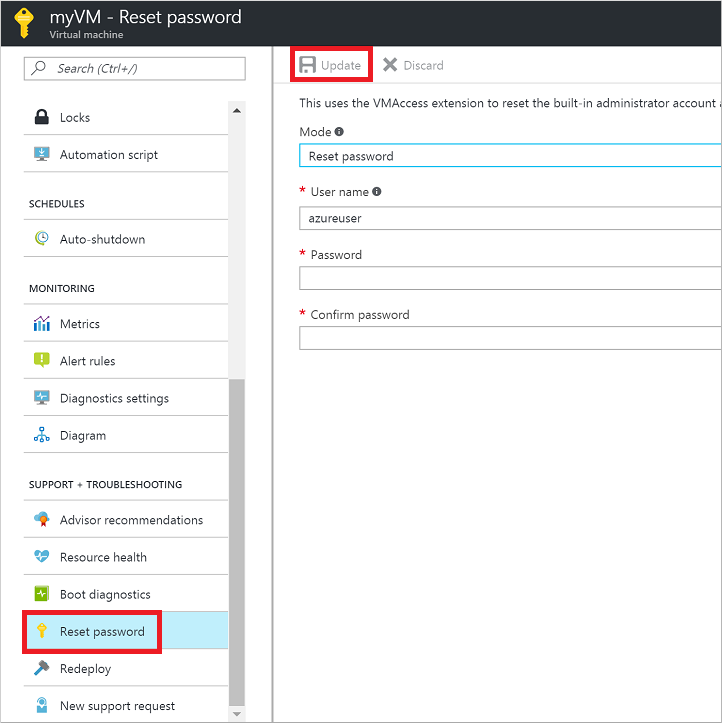
Enter the username and a new password, then click Update. Try connecting to your VM again.
Reset the Remote Desktop service configuration
Select your Windows virtual machine then click Support + Troubleshooting > Reset password. The password reset blade is displayed.

Select Reset configuration only from the drop-down menu, then click Update. Try connecting to your VM again.
VMAccess extension and PowerShell
Make sure that you have the latest PowerShell module installed and configured and are signed in to your Azure subscription with the Connect-AzureRmAccount cmdlet.
Reset the local administrator account password
Reset the administrator password or user name with the Set-AzureRmVMAccessExtensionPowerShell cmdlet. The typeHandlerVersion must be 2.0 or greater, as version 1 is deprecated.
$SubID = "<SUBSCRIPTION ID>"
$RgName = "<RESOURCE GROUP NAME>"
$VmName = "<VM NAME>"
$Location = "<LOCATION>"
Connect-AzureRmAccount
Select-AzureRMSubscription -SubscriptionId $SubID
Set-AzureRmVMAccessExtension -ResourceGroupName $RgName -Location $Location -VMName $VmName -Credential (get-credential) -typeHandlerVersion "2.0" -Name VMAccessAgent
Note - If you type a different name than the current local administrator account on your VM, the VMAccess extension will add a local administrat or account with that name, and assign your specified password to that account. If the local administrator account on your VM exists, it will reset the password and if the account is disabled, the VMAccess extension enables it.