Manage Services
In the Manage tab, you can manage your service with management functions like changing passwords, login credentials and enabling/disabling security settings and updates.
See sample screenshot of the Manage section:
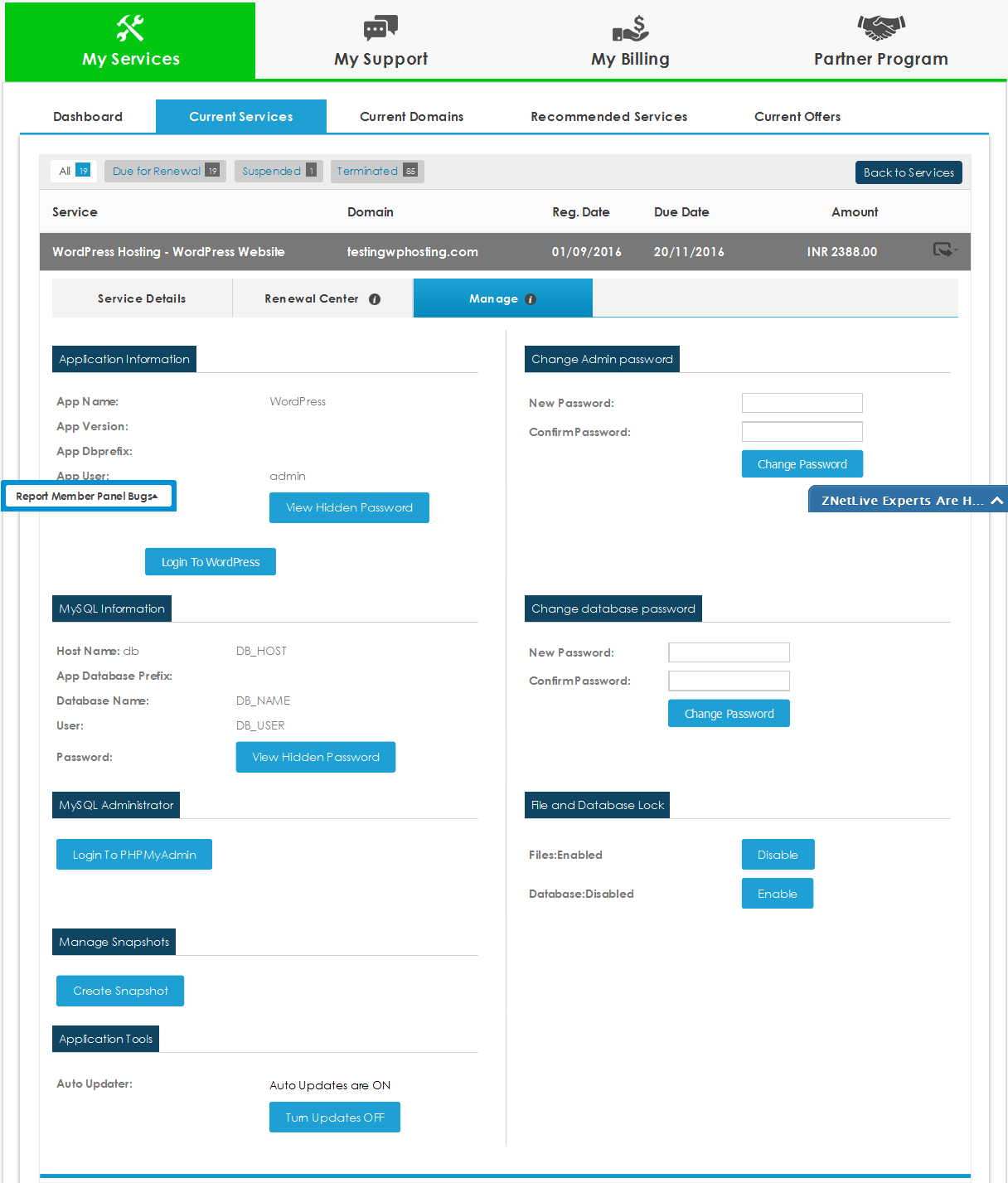
- View Application Information : You can view the Application Information about your service under the Application Information section in the Manage tab. Here, you can –
1. View the hidden password of your application by clicking on the View Hidden Password button.
2. Login to your WordPress dashboard by clicking on Login to WordPress button.
- Change Admin Password : You can change the admin password of your application in the Change Admin Password section of the Manage tab.
Enter the new password and click on the Change Password button.
- View Database Information : You can view the information about your database in the Database (MySQL/MSSQL) Information section of the Manage tab. Here, you can also view the hidden password of your database by clicking on the View Hidden Password button.
- Change Database Password : You can change the password of your database in the Change Database Password section of the Manage tab.
Enter the new password and click on the Change Password button.
- Enable/Disable Files and Database Lock : You can Enable/Disable the security lock for your Files and Database by clicking on the Enable/Disable button in the Files and Database Lock section of the Manage tab.
- Turn Auto Updates ON/OFF for Application Tools : You can turn the auto updates ON/OFF for Application Tools by clicking on the Turn Updates ON/OFF button in the Application Tools section of the Manage tab.

